
Triage Findings
Read the Security Overview, filter the findings list, and check repository coverage.
Findings appear after the first pull request is opened on an in-scope repository. Nothing is scanned retroactively.
Overview
Go to Shield → Overview.
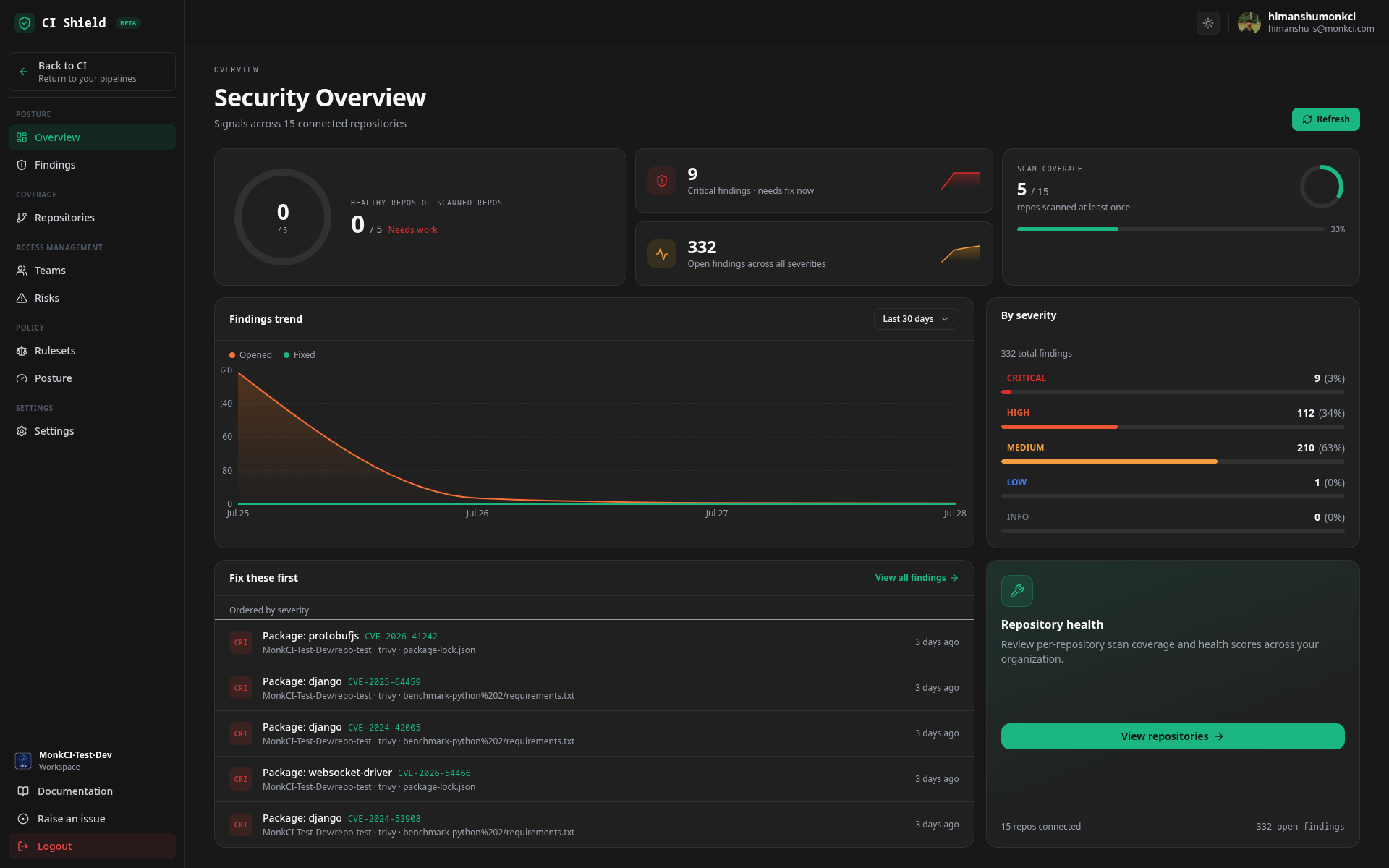
| Panel | Use it to |
|---|---|
| Critical findings | Check whether anything needs fixing right now. |
| Open findings | Track the total across all severities. |
| Scan coverage | Confirm how many repositories have been scanned at least once. |
| Healthy repos | See how many scanned repositories have zero open findings. |
| Findings trend | Compare opened against fixed over the last 7, 30, or 90 days. |
| By severity | Jump to the Findings page filtered to one severity. |
| Fix these first | Work top-down. The list is already ordered by severity. |
Click Refresh to re-read the latest data.
A low scan coverage number early on is expected - a repository is not scanned until it sees pull request activity. If it stays low, widen coverage under Settings → Repository coverage.
Findings
Go to Shield → Findings to see every finding from every scanner.
Filter the list
Filter by severity, status (open, fixed, suppressed, false positive), scanner, or repository. Search matches the finding title, rule ID, and file path.
Sort
The default order is severity-first. Switch to newest or oldest to sort by when a finding was first seen.
Open a finding
Select any row to open its detail panel.
The detail panel gives you what you need to fix the finding:
| Field | Use it to |
|---|---|
| File path and line range | Locate the problem in your repository. |
| Message and code snippet | See what was detected, in context. |
| Reference link | Read the scanner's documentation for the rule. |
| Secret type | For secret findings - identify which credential to rotate. |
| Package, CVE, advisory, fixed version | For dependency findings - upgrade to the version that resolves the CVE. |
| First seen / last seen | Check how long the finding has been present. |
You do not need to close findings manually. A finding absent from a later scan is marked fixed automatically. Suppressed findings record who suppressed them and why.
Repositories
Go to Shield → Repositories to check coverage and health.
- Read the totals: connected, scanned, healthy repos, and open findings.
- Sort by health score or critical count to find the repository that needs attention first.
- Select a repository to jump to its findings.
- If a repository is missing, add it under Settings → Repository coverage.