
Usage & Billing
Monitor spend, review invoices, and manage billing operations for the current period.
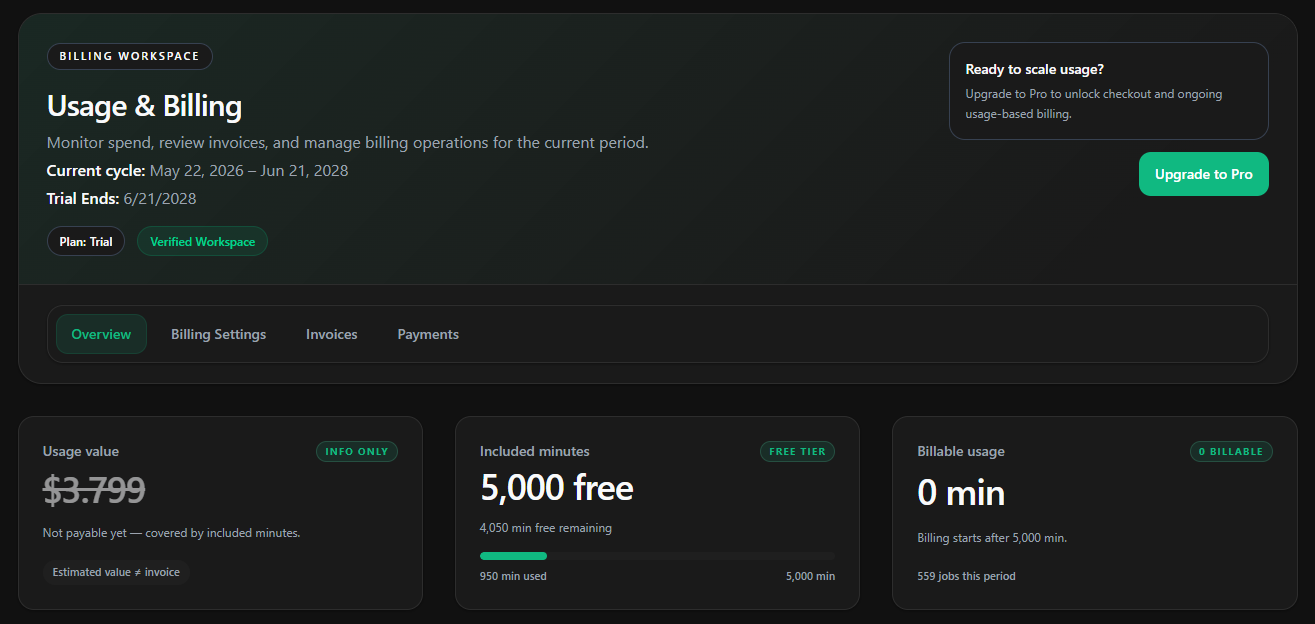
The Usage & Billing workspace gives you a real-time view of your organization's compute consumption and costs for the current period. Use it to track usage, see where minutes are being consumed, review invoices, and manage payment.
Your plan's allowance, then what you use
Paid plans carry a monthly allowance of build minutes and AI credits. Additional compute costs $0.002 per vCPU-minute — $0.008 per minute on a 4-vCPU runner. New organizations start on a 14-day trial of 5,000 minutes measured at 2 vCPU, and nothing is charged until you upgrade. See the Pricing page for the allowances and rates.
Plan & Billing Cycle
The header at the top of the workspace summarizes the state of your account:
- Plan - your current plan, e.g.
Trial. A Verified Workspace badge appears once your workspace is verified. - Current cycle - the start and end dates of the active billing period.
- Trial Ends - the date your trial expires (shown while on the Trial plan).
Upgrading to Pro
While on the Trial plan, the Upgrade to Pro card sits in the top-right of the workspace. Upgrading to Pro unlocks checkout and ongoing usage-based billing, so your jobs keep running once you pass the free allowance, and it is what lets you buy extra AI credits.
Upgrading between paid plans is prorated, and the upgrade page shows the exact charge before you confirm. See Pricing for how that is worked out.
Jobs are queued, not executed, once the free-minute allowance is exhausted. Upgrading to Pro and adding a payment method unblocks queued jobs.
Workspace Tabs
The workspace is organized into four tabs:
| Tab | Purpose |
|---|---|
| Overview | At-a-glance usage value, included minutes, billable usage, and the spend breakdown. |
| Billing Settings | Manage your plan, billing cycle, and workspace billing details. |
| Invoices | Review and download invoices for past periods. |
| Payments | Add and manage payment methods. |
Overview
The Overview tab summarizes the current period across three cards.
Usage value
The estimated value of this period's usage. While covered by included minutes it is marked Info only and is not yet payable - the estimate is not an invoice.
Included minutes
Your free-tier allowance, the minutes remaining, and how many of the included minutes have been used so far this period.
Billable usage
Minutes that count toward an invoice. Billing starts only after the included minutes are used up. Also shows the number of jobs run this period.
Compute minutes are billed per runner configuration, and add-ons like Docker layer caching are billed separately. See the Pricing page for the full rate card.
Spend Breakdown
The Spend Breakdown section compares usage distribution with a donut chart and a ranked legend. Use the Repository / Runner toggle in the top-right to switch views.
Each segment represents one repository, sized by its share of usage for the period. The legend lists each repository with its percentage contribution.
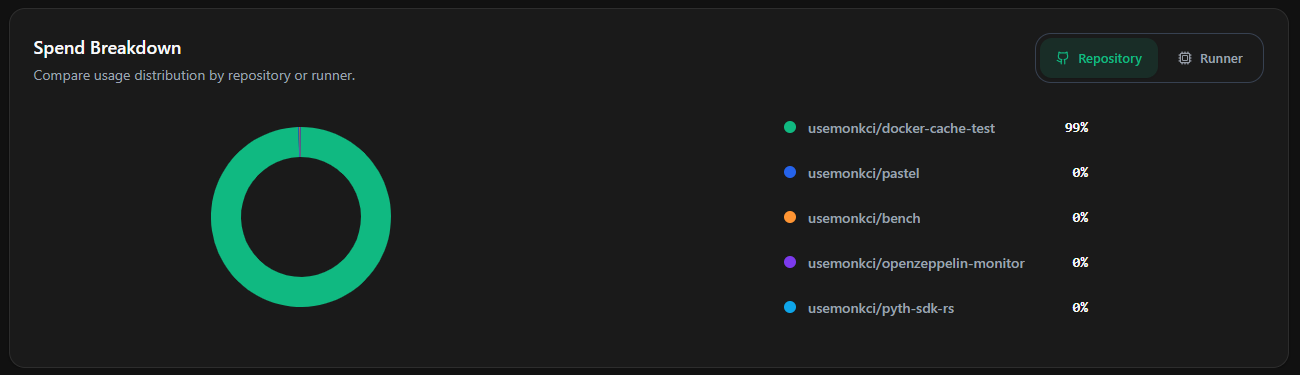
Use this view to identify your primary cost driver, then open Analytics and apply the repository filter to inspect job volume, failure rate, and runtime.
Adding Payment Information
Add a payment method from the Payments tab (or as part of upgrading to Pro) so jobs keep running beyond the free allowance.
Open the Payments tab (or click Upgrade to Pro)
Both routes lead to a secure external payment portal.
Enter your billing details
Provide your card number, expiry, CVC, and billing address. Monk CI uses a PCI-DSS compliant processor - Razorpay for domestic payments and Dodo Payments for international payments. Card details are never stored on Monk CI servers.
Confirm and save
Your payment method appears as active, and any queued jobs resume automatically within a few seconds.
Common Use Cases
Checking how much free allowance is left
Open the Overview tab and read the Included minutes card - it shows minutes remaining and minutes used against your free-tier allowance.
Identifying which repository is driving usage
Open Spend Breakdown → Repository, find the largest segment, then go to Analytics, apply the repository filter, and review job volume and runtime.
Evaluating runner right-sizing
Open Spend Breakdown → Runner and check if a large share is attributed to a high-tier runner. In Analytics, filter by that runner and review runtime - if jobs finish quickly, a smaller runner may cut usage.
Keeping jobs running past the free tier
Click Upgrade to Pro, add a payment method on the Payments tab, and usage-based billing takes over once included minutes are exhausted.