
AI Log Summary
When a job fails on a repository you've enabled, Monk CI analyzes the logs and generates a root cause analysis you can read in plain English - right inside the dashboard.
When a pipeline breaks, you usually have to scroll through thousands of log lines to find the one that matters. Monk CI does that for you. When a job fails on a repository where AI Log Summary is enabled, Monk CI generates a Root Cause Analysis (RCA) from its logs and surfaces it directly in your dashboard.
Enabling AI Log Summary
AI Log Summary is an agent you turn on per repository - it is off by default. There is nothing to add to your workflow YAML; enablement happens entirely in the Monk CI dashboard.
Open Agents → AI Log Summary in your workspace.
Enable it for the repositories you want summaries on. Only enabled repositories are analyzed.
Opt-in per repository
Summaries are generated only for the repositories you've enabled. Failed jobs on repositories where AI Log Summary is off will not produce a summary.
How It Works
A job fails - Monk CI detects the non-success exit status as the run completes, on a repository where AI Log Summary is enabled.
Logs are analyzed - Our AI ingests the failed job's logs, isolates the error, and reasons about why it happened.
An RCA is generated - A structured summary is attached to the run, ready to read the moment the job turns red.
Viewing a Summary
Open any failed run from the Run History dashboard. On an enabled repository, failed jobs display a View AI Summary button next to View logs.
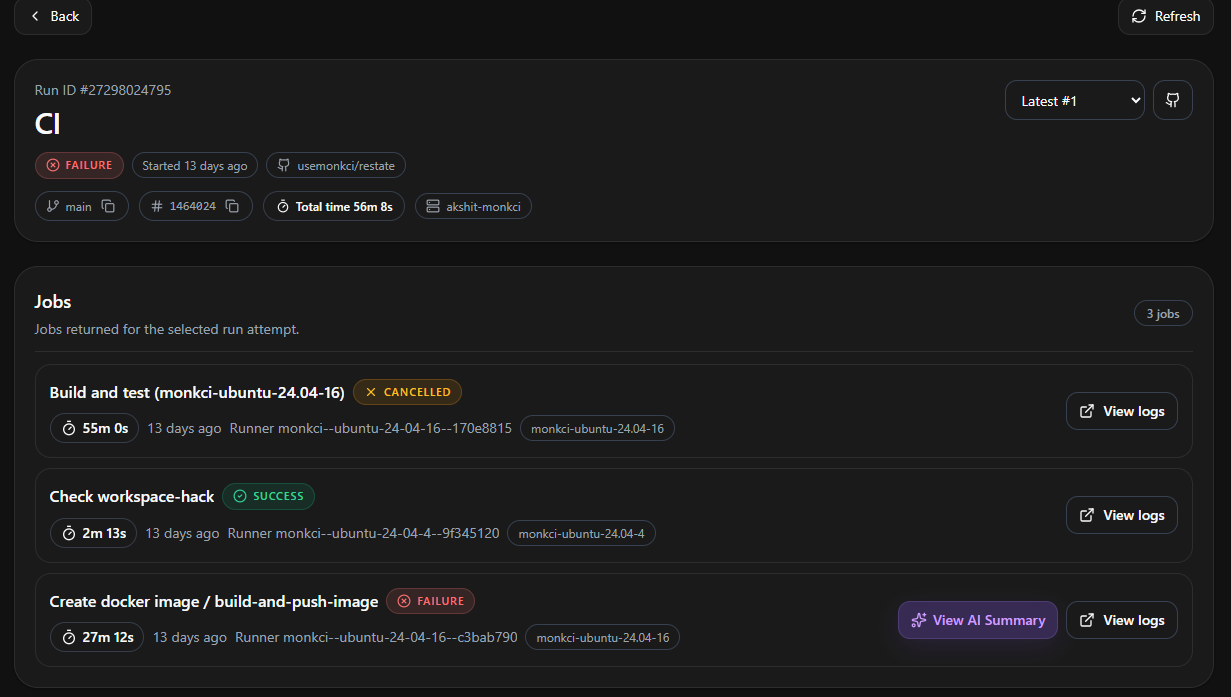
Click View AI Summary to open the RCA panel for that job.
Not enabled yet?
If AI Log Summary isn't turned on for a repository, opening a failed job tells you so and points you to Agents → AI Log Summary to enable it.
What's in a Summary
Each AI summary breaks the failure down into clear, actionable sections.
Summary
A plain-English headline explaining what failed and why it matters.
Root Cause
The specific reason the job failed, traced back to the exact error in the logs.
Impact
What the failure blocked - for example, a deployment that could not proceed.
Recommended Actions
A prioritized, step-by-step list of fixes to resolve the failure.
Evidence
The raw log excerpts the analysis is based on, so you can verify the diagnosis.
Example
Here's a real summary for a Docker push that was denied at the registry. The panel calls out the root cause, the impact, a prioritized list of recommended actions, and the exact log evidence behind the diagnosis.
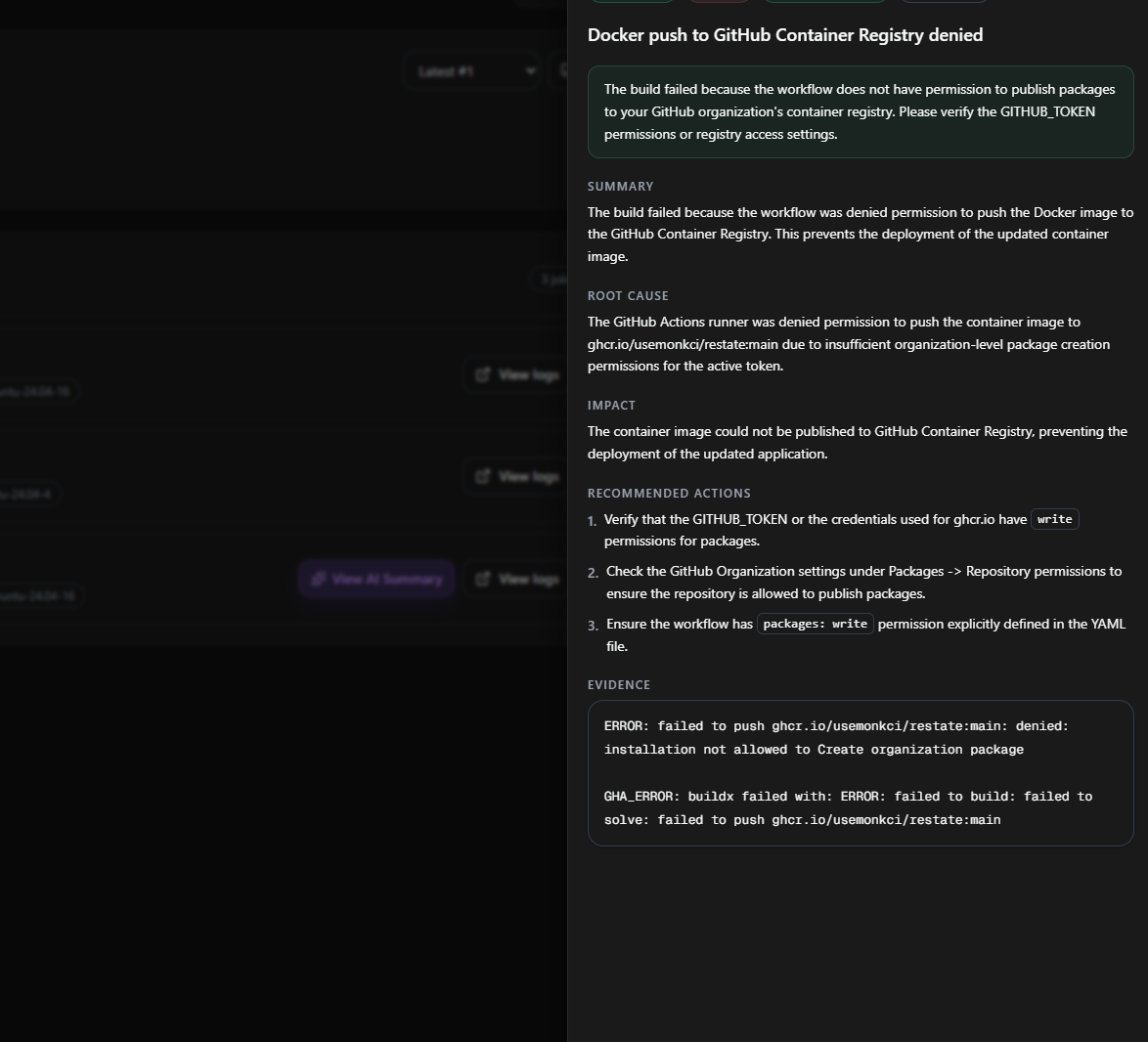
This turns a wall of red log output into a diagnosis your team can act on in seconds.
Pricing
Draws from your AI credits
AI Log Summary runs on your workspace's AI credits, metered by the tokens each summary uses. Every plan includes a monthly grant — 10 on the trial, 20 on Pro, 100 on Max — and Pro and Max bill $0.10 a credit beyond it. See the Pricing page for details.